Manually sending the same WhatsApp message to dozens or hundreds of contacts can be time-consuming and difficult to manage. ChatReach helps you streamline your outreach by allowing you to send personalized WhatsApp messages directly from WhatsApp Web while tracking progress and maintaining a complete history of your campaigns.
Follow the steps below to get started.
Step 1: Install ChatReach
 Add ChatReach to Chrome now to get started
Install the ChatReach Chrome Extension from the Chrome Web Store.
Once installed:
- Open WhatsApp Web.
- Click the ChatReach extension icon.
You are now ready to create your first messaging campaign.

Step 2: Add Recipients
ChatReach gives you multiple ways to add recipients depending on your workflow.
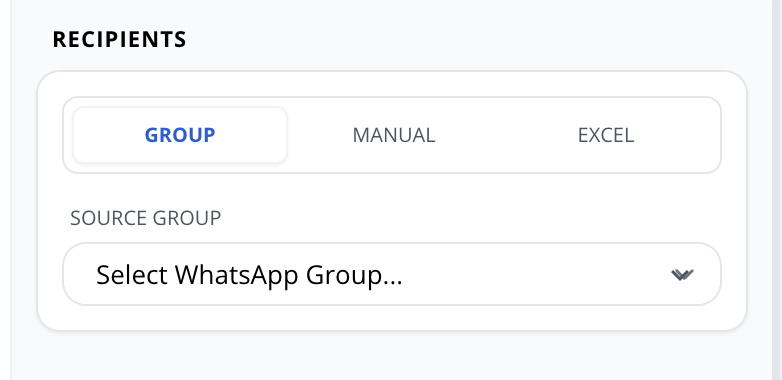
Option A: Select WhatsApp Group Members
If you already have a WhatsApp group:
- In ChatReach, select Groups.
- Select your group from the list.
Option B: Enter Phone Numbers Manually
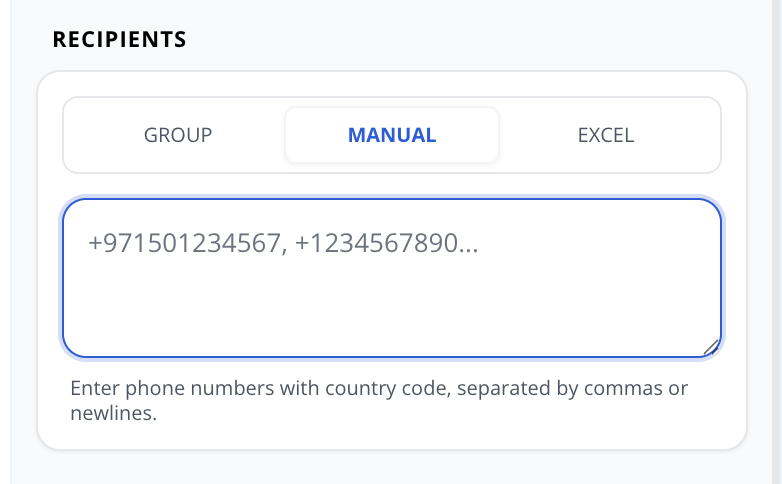
If you already have a list of numbers:
- Navigate to the Manual section.
- Paste or type phone numbers manually.
- Add comma separated phone numbers with country code.
Option C: Upload an Excel File
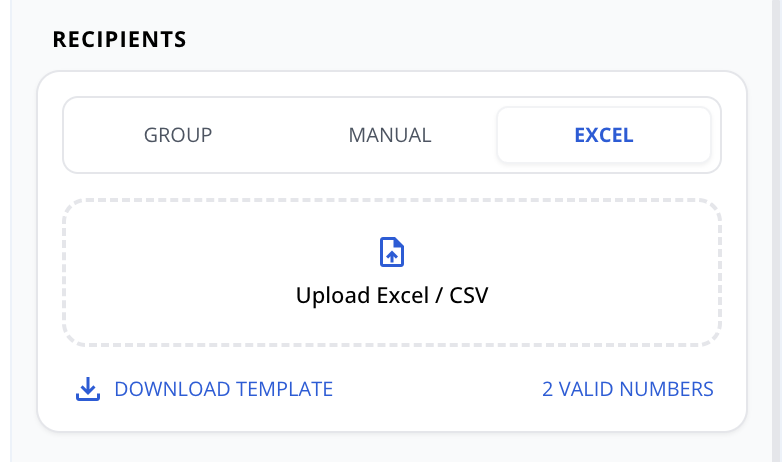
For larger campaigns:
- Prepare your Excel file with recipient phone numbers as per the template.
- Click Upload File.
- Select your Excel spreadsheet.
- Review the imported contacts before continuing.
Step 3: Create Your Message
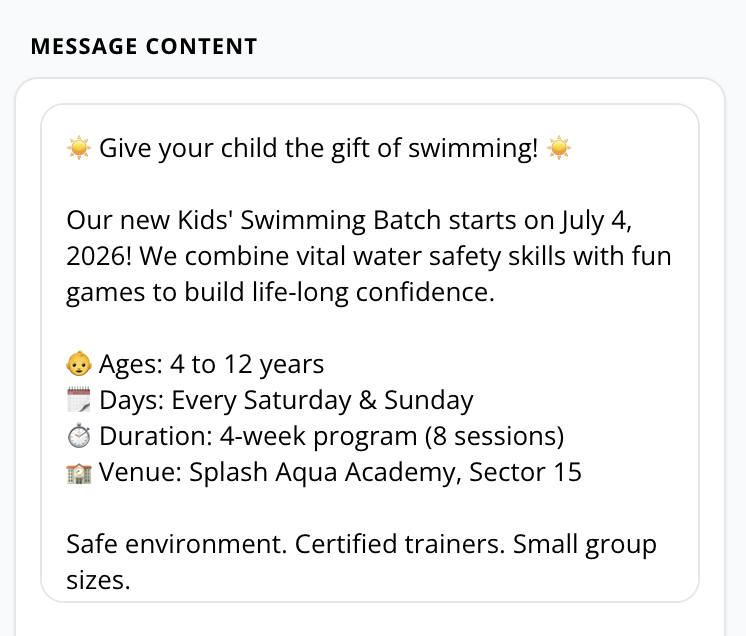
- Enter the message you want to send.
- Review the content carefully.
Before starting, make sure your message is relevant to your audience and follows applicable communication guidelines.
Step 4: Start Your Broadcast
When everything looks correct:
- Click Start Broadcast.
- ChatReach will begin processing recipients one by one.
- Messages are sent according to your configured sending settings.
Once started, you can monitor the campaign directly from the dashboard.
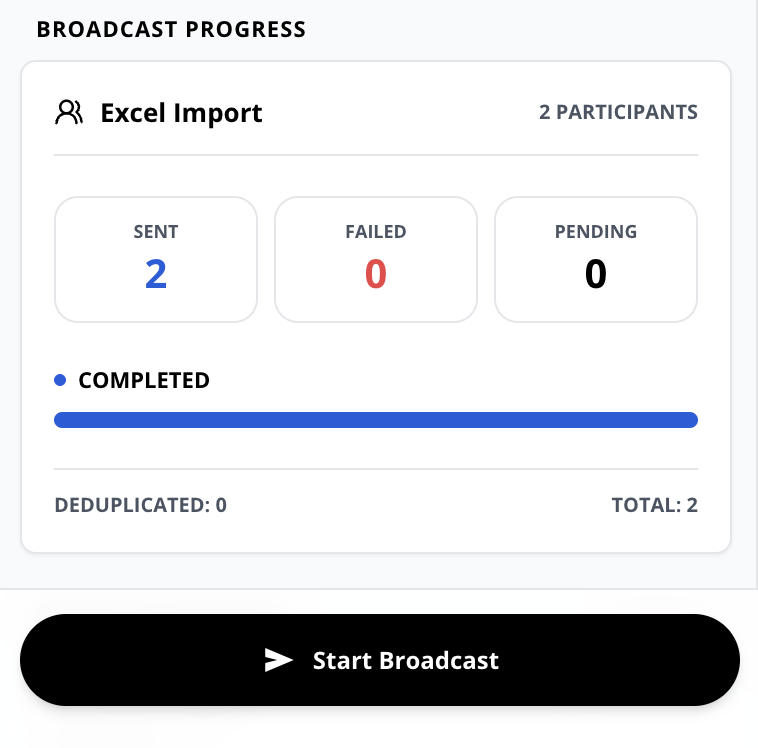
Step 5: View Real-Time Progress
While your campaign is running, ChatReach displays live updates.
Track:
- Messages Sent
- Pending Messages
- Failed Messages
- Completion Percentage
This allows you to monitor campaign activity without manually checking every message.
Step 6: Review Campaign History
After the broadcast is completed:
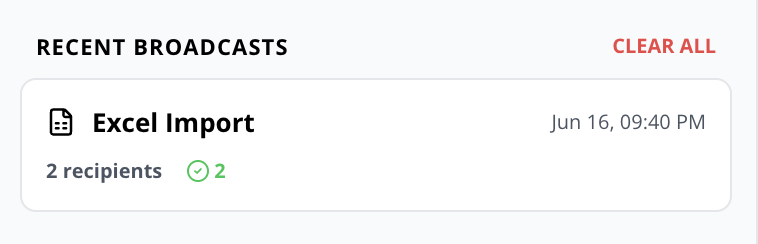
- Open the History section.
- View previous campaigns.
- Review message statistics.
- Check sent, completed, and failed records.
Campaign history helps you stay organized and understand past outreach activity.
You're Ready to Reach More People in Less Time
ChatReach helps you simplify repetitive WhatsApp communication by bringing recipient management, messaging, progress tracking, and campaign history into a single workflow.
Instead of spending hours copying, pasting, and sending messages manually, you can focus on meaningful conversations while ChatReach helps you stay organized.
Add ChatReach to Chrome now to get started